






Connecting a wireless microphone to an amplifier might seem like a daunting task, especially if you're not super tech - savvy. But don't worry, I'm here to walk you through the process step by step. As a wireless microphone supplier, I've seen firsthand how these devices can transform your audio setup, whether it's for a small home party, a large venue, or even for live streaming.
Understanding the Basics
Before we start connecting anything, it's important to understand what we're working with. A wireless microphone system typically consists of two main parts: the transmitter and the receiver. The transmitter is the handheld or lavalier microphone that picks up the sound. The receiver is what captures the wireless signal from the transmitter and converts it into an audio signal that can be sent to an amplifier.
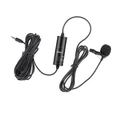
There are different types of wireless microphones available. For instance, you got the Condenser Microphone. Condenser mics are known for their high - sensitivity and great sound quality, making them perfect for recording vocals and acoustic instruments. Another option is the FM Multi - function Microphone. These versatile mics often come with additional features like FM radio playback and can be used in a variety of settings. And if you're into live streaming on your mobile device, the Mobile Live Microphone is a great choice as it's designed to work well with smartphones and tablets.
Step 1: Power On the Devices
The first thing you need to do is power on both the wireless microphone transmitter and the receiver. Make sure the batteries in the transmitter are fully charged or that it's properly connected to a power source if it's a rechargeable model. Usually, there'll be a power button on both the transmitter and receiver. Just press it until the device lights up, indicating that it's powered on.
Step 2: Pairing the Transmitter and Receiver
Once both devices are powered on, you need to pair them. The pairing process may vary depending on the model of your wireless microphone. In most cases, there'll be a "pairing" or "sync" button on both the transmitter and the receiver. Press the pairing button on the receiver first, then quickly press the corresponding button on the transmitter. You might see some indicator lights flashing or hear a beep sound when the pairing is successful. If it doesn't work on the first try, don't stress. Just repeat the process and make sure the devices are close to each other during pairing.
Step 3: Connecting the Receiver to the Amplifier
After the transmitter and receiver are paired, it's time to connect the receiver to the amplifier. There are a few different ways to do this, depending on the available ports on both devices.
Using an XLR Cable
If both your receiver and amplifier have XLR ports, this is probably the best way to go. XLR cables provide a balanced audio signal, which means less noise and interference. Simply plug one end of the XLR cable into the output port of the receiver and the other end into the input port of the amplifier. Most of the time, the input ports on an amplifier are labeled clearly, so you should be able to find the right one easily.
Using a TRS or RCA Cable
If your equipment doesn't have XLR ports, you can use a TRS (Tip - Ring - Sleeve) or RCA cable instead. TRS cables are commonly used for balanced stereo audio and are often found on consumer - grade audio equipment. RCA cables are more commonly used for unbalanced audio. Just like with the XLR cable, plug one end of the cable into the receiver's output and the other end into the amplifier's input.
Step 4: Adjusting the Volume and Settings
Once everything is connected, it's time to test the setup and adjust the volume and settings. Turn on the amplifier and set the volume to a low level. Then, speak or make some noise into the wireless microphone. You should hear the sound coming out of the amplifier's speakers. If you don't hear anything, double - check all the connections and make sure the devices are still paired.
You can then adjust the volume on both the microphone transmitter and the amplifier to get the desired sound level. Some wireless microphone receivers also have additional settings like gain adjustment, bass and treble controls. Play around with these settings to find the best sound quality for your specific needs.
Troubleshooting Common Issues
Even if you follow all the steps correctly, you might still run into some issues. Here are a few common problems and how to fix them:
- No sound: Check the power of all devices, make sure the transmitter and receiver are paired, and double - check all the cable connections. Also, check the volume settings on both the microphone and the amplifier.
- Interference or noise: If you hear static or other unwanted noises, try changing the channel on the wireless microphone system. Many wireless microphones have multiple channels to choose from, and some channels may be more prone to interference. You can also try moving the receiver away from other electronic devices like routers or microwaves, which can cause interference.
- Weak signal: If the sound cuts out or is weak, make sure the transmitter and receiver are within the recommended range. Also, check for any obstacles between the two devices, as walls or other objects can weaken the wireless signal.
Conclusion
Connecting a wireless microphone to an amplifier doesn't have to be difficult. By following these steps and understanding the basic principles, you can set up a great audio system in no time. As a wireless microphone supplier, I've seen countless customers enhance their events, performances, and recordings with our high - quality wireless microphones.
If you're thinking about upgrading your audio setup or need a reliable wireless microphone for your next project, I'd love to have a chat with you. Reach out for a friendly chat and we can discuss the best options for your specific needs. Whether you need a Condenser Microphone, FM Multi - function Microphone, or Mobile Live Microphone, we've got you covered.


References
- General knowledge from years of experience as a wireless microphone supplier
- Manufacturer's guides for various wireless microphone systems